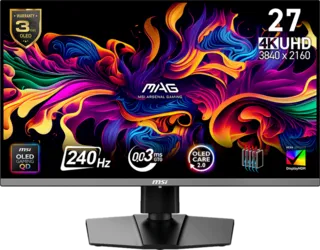
Highlights:
- The CPU, GPU, and monitor work in unison to achieve higher refresh rates.
- Check your current frame rates before upgrading to a high-refresh rate monitor.
- Consider refresh rate in tandem with other features like resolution when choosing a display.
- Consider upgrading the CPU and GPU if your system isn't delivering the refresh rates you want.
Introduction
Gaming at a high refresh rate can make a big difference. Here's what to know about testing, optimizing, and choosing a high-refresh rate display.
Playing games at a higher refresh rate can have a substantial impact on your gaming experience. This is especially relevant with fast-paced, competitive games where every frame counts. However, simply buying a 144Hz or 240Hz display is not enough to see the benefits. Your system has to be able to power the frame rates necessary to take advantage of higher refresh rates.
Understanding Refresh Rates
What is Refresh Rate?
A higher refresh rate refers to the frequency that a display updates the onscreen image. The time between these updates is measured in milliseconds (ms), while the refresh rate of the display is measured in hertz (Hz).
Definition: The refresh rate of your display refers to how many times per second the display is able to draw a new image. This is measured in Hertz (Hz).
Example: If your display has a refresh rate of 144Hz, it is refreshing the image 144 times per second. When paired with the high frame rates produced by a GPU and CPU working together, this can result in a smoother experience and potentially higher FPS.
The Three Key Components
In order to take advantage of higher refresh rates, three of the most important components to consider are:
1. Monitor:
- Must have the ability to refresh quickly
- Hardware capability determines maximum refresh rate
- Physical limitation of the display
2. CPU:
- Fast enough to provide critical game instructions
- Handles AI, physics, game logic
- Provides rendering data to GPU
- Can be a bottleneck if too slow
3. GPU:
- Fast enough to execute instructions quickly
- Creates the graphics you see
- Must produce frames fast enough for monitor
- Often the primary determining factor
The Bottleneck Principle
Critical Concept: The monitor can only display an image at the rate the system produces it. It's important that your CPU and GPU are capable of completing this process quickly.
Example Scenario: If your monitor has a refresh rate of 144Hz but the GPU is only supplying 30 frames per second, that higher refresh rate is not being utilized.
In other words: Your system's performance is only as strong as its weakest component.
Hardware Configurations
Performance Scaling
The level of hardware required to drive a higher refresh rate varies based on:
- The refresh rate you hope to achieve
- The games you're playing
- The resolution you're running
- The graphics settings used
General Rule: The higher a monitor's refresh rate, the more FPS your CPU and GPU will need to supply, and the more benefit you'll receive from higher performance options.
Game-Specific Requirements
Less Demanding Games:
- Older games
- Games without latest graphics technologies
- Esports titles (CS:GO, VALORANT, etc.)
- Easier to achieve high refresh rates
- Lower hardware requirements
Demanding Games:
- Cutting-edge AAA titles
- Ray tracing enabled
- High resolution (4K)
- Ultra settings
- Require powerful hardware for high refresh
Optimizing for Higher Refresh Rates
Resolution Adjustments: Lowering the resolution to 1080p will result in a higher refresh rate at less of a cost to performance.
Graphics Settings: Turning off or lowering graphical settings can help achieve higher frame rates.
Finding Balance: Adjust the settings and resolutions of your games to find the balance that works for you.
Key Insight: The less taxing the gameplay experience is on the hardware, the easier it will be to push the frame rate high enough to see the benefits of a high-refresh rate display.
Testing Your System
Check Current Frame Rates
Before upgrading to a high-refresh rate monitor:
- Test your current system in the games you play
- Monitor frame rates using software like MSI Afterburner, FRAPS, or in-game overlays
- Identify bottlenecks - is it CPU or GPU limited?
- Determine realistic refresh rate targets
Upgrade Path
If your system isn't delivering desired refresh rates:
Option 1: Upgrade CPU
- If CPU usage is consistently high (90%+)
- If GPU isn't being fully utilized
- Benefits games with heavy physics/AI
Option 2: Upgrade GPU
- If GPU usage is consistently at 100%
- Most common bottleneck for gaming
- Biggest impact on frame rates
Option 3: Upgrade Monitor (Last)
- Only after CPU/GPU can drive it
- Don't buy monitor before system is ready
- Match monitor to system capabilities
Choosing the Right Monitor
Refresh Rate vs Resolution
The Trade-off: Higher resolution requires more GPU power, which may reduce achievable refresh rates.
Common Configurations:
- 1080p 240Hz+: Best for competitive gaming
- 1440p 144Hz-165Hz: Sweet spot for most gamers
- 1440p 240Hz+: High-end gaming
- 4K 144Hz+: Premium, requires top-tier GPU
Adaptive Sync Technology
What is Adaptive Sync? Technology that synchronizes the monitor's refresh rate with the GPU's frame rate output.
Benefits:
- Eliminates screen tearing
- Reduces stuttering
- Smoother gameplay experience
- Works at any frame rate within VRR range
Types:
- NVIDIA G-Sync: Proprietary, premium option
- AMD FreeSync: Open standard, widely supported
- G-Sync Compatible: NVIDIA cards working with FreeSync monitors
Monitor Features to Consider
Panel Type:
- TN: Fastest response times
- IPS: Best color accuracy
- VA: Best contrast
- OLED: Best overall (fastest, perfect blacks)
Response Time:
- Lower is better
- Under 5ms good for gaming
- Under 3ms better for competitive
- Under 1ms best for esports
Connectivity:
- DisplayPort 1.4: Best for PC
- HDMI 2.1: Required for console 4K 120Hz
Upgrading Your System for Smoother Gameplay
Upgrade Priority
1. GPU First (Usually)
- Biggest impact on gaming performance
- Determines achievable frame rates
- Most important for high refresh
2. CPU Second (If Needed)
- Prevents bottlenecking GPU
- Important for CPU-intensive games
- Less impact than GPU upgrade
3. Monitor Last
- Match to system capabilities
- Don't overspend on monitor you can't drive
- Future-proof within reason
Performance Targets by Refresh Rate
144Hz Gaming:
- Entry: RTX 3060 / RX 6600 XT (1080p)
- Mid: RTX 3070 / RX 6700 XT (1440p)
- High: RTX 3080 / RX 6800 XT (1440p high settings)
240Hz Gaming:
- Entry: RTX 3070 / RX 6700 XT (1080p)
- Mid: RTX 3080 / RX 6800 XT (1080p/1440p)
- High: RTX 4080 / RX 7900 XT (1440p)
360Hz Gaming:
- Minimum: RTX 3080 / RX 6800 XT
- Recommended: RTX 4080+ / RX 7900 XT+
- Resolution: Usually 1080p for 360Hz
Learn More
Related Monitor Critic Resources:
- What to Look for in a Gaming Monitor
- A Guide to Gaming Displays
- How the CPU Affects Your Gaming Experience
- Get to the Core of Gaming
Final Thoughts
Key Takeaways:
- Monitor, CPU, and GPU must work together for high refresh rate gaming
- Check your current frame rates before buying a high-refresh monitor
- Consider all factors - resolution, refresh rate, and hardware capabilities
- Upgrade strategically - usually GPU first, then monitor
The Bottom Line: A high-refresh rate monitor is only as good as the system driving it. Ensure your hardware can deliver the performance needed to take full advantage of your display investment.