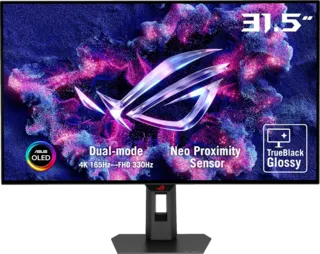
Our Top Pick: ASUS ROG Swift OLED PG27UCDM
The best monitor for Xbox Series X that we've tested is the ASUS ROG Swift OLED PG27UCDM. It's a fantastic 27-inch, 4K gaming display with a QD-OLED panel.
Why It's Great for Xbox Series X
- 4K resolution matches Xbox Series X's maximum output
- 240Hz refresh rate (Xbox supports up to 120Hz)
- HDMI 2.1 support for full 4K 120Hz gaming
- QD-OLED panel provides excellent HDR performance
- Near-instant response time for smooth gameplay
- Perfect blacks and infinite contrast ratio
Key Features
- 27-inch screen size ideal for most setups
- VRR (Variable Refresh Rate) support for Xbox
- Auto Low Latency Mode (ALLM)
- Excellent color volume for HDR gaming
- Low input lag for responsive gaming
What Xbox Series X Needs in a Monitor
Resolution
- 4K (3840x2160): Maximum resolution Xbox Series X supports
- 1440p (2560x1440): Popular choice, still looks excellent
- 1080p (1920x1080): Supported but not recommended for new purchases
Refresh Rate
- 120Hz: Maximum for Xbox Series X in 4K (with HDMI 2.1)
- 144Hz+: Future-proofing for PC use
- 60Hz: Minimum acceptable, but 120Hz strongly preferred
Essential Features
- HDMI 2.1: Required for 4K 120Hz
- VRR (Variable Refresh Rate): Eliminates screen tearing
- ALLM (Auto Low Latency Mode): Reduces input lag automatically
- HDR Support: DisplayHDR 400 minimum, 600+ preferred
- Low Input Lag: Under 10ms ideal
Xbox Series X Display Capabilities
4K Gaming
- Up to 4K at 120Hz (requires HDMI 2.1)
- Most games run at 4K 60Hz
- Some titles offer 4K 120Hz modes
1440p Gaming
- Up to 1440p at 120Hz (HDMI 2.0 sufficient)
- Better performance in demanding games
- Good middle ground for many users
1080p Gaming
- Up to 1080p at 120Hz
- Maximum performance mode
- Not recommended for new monitor purchases
HDR Gaming
- HDR10 support standard
- Dolby Vision supported in some games
- Auto HDR enhances many titles
- Much improved HDR on Xbox vs previous generations
Monitor Recommendations by Category
Best Overall: ASUS ROG Swift OLED PG27UCDM
- 4K QD-OLED
- 240Hz (120Hz for Xbox)
- HDMI 2.1
- Premium HDR experience
Best Value: Gigabyte MO27Q28G
- 1440p 180Hz
- Good color accuracy
- Affordable price point
- Great for mixed PC/Xbox use
Best Budget: AOC Q27G40XMN
- 1080p 260Hz
- Fast IPS panel
- Under $300
- Good entry-level option
Best Premium: Dell Alienware AW3225QF
- 32-inch 4K QD-OLED
- 240Hz
- Large screen for immersive gaming
- Top-tier HDR performance
Xbox Series X vs PS5 Monitor Considerations
While most monitors work with both consoles, consider:
Xbox-Specific Features
- Dolby Vision support (some monitors support this)
- Quick Resume works well with monitors
- Auto HDR more aggressive than PS5 implementation
Connectivity
- Both consoles use HDMI 2.1 for maximum performance
- Many monitors have limited HDMI 2.1 ports (often just one or two)
- Consider a monitor with multiple HDMI 2.1 ports if you have both consoles
Setting Up Your Monitor With Xbox Series X
Step-by-Step
- Connect HDMI 2.1 cable (included with Series X works fine)
- Enable 4K 120Hz in Xbox display settings
- Enable VRR in Xbox settings
- Enable ALLM on monitor if not automatic
- Calibrate HDR using Xbox HDR calibration app
Recommended Settings
- Resolution: 4K UHD
- Refresh Rate: 120Hz (if available)
- Color Depth: 10-bit
- Color Space: Standard (PC RGB if available and looks correct)
- Allow VRR: Yes
- Allow 4K: Yes
- Allow HDR: Yes
Common Issues and Solutions
No 4K 120Hz Option
- Ensure HDMI 2.1 cable is used
- Check monitor supports HDMI 2.1
- Verify correct HDMI port on monitor (some only support 2.1 on specific ports)
HDR Looks Washed Out
- Use Xbox HDR calibration tool
- Check monitor HDR settings
- Ensure HDR is enabled in both Xbox and monitor settings
Screen Tearing
- Enable VRR on both Xbox and monitor
- Check game supports VRR
- Some games may need performance mode enabled
Monitor Critic Testing Methodology
Monitor Critic tests Xbox Series X monitors with:
- Actual Xbox Series X console
- Input lag measurements at 4K 60Hz and 1080p 120Hz
- HDR brightness and color testing
- VRR functionality verification
- HDMI 2.1 bandwidth testing
- Response time measurements
- Real-game performance evaluation